Free Shipping worldwide!


Multi View on SuperBox: Supported Models and How to Use It

One of the most exciting things about modern TV boxes is how they continue to evolve to make entertainment more flexible and enjoyable. SuperBox, as a streaming box that always grows with our customers’ needs, has introduced the multi view feature starting from the S6 series. If you’ve ever wished you could follow two or more shows at once without switching back and forth, you’ll be happy to know that multi view on SuperBox makes it possible.
Which SuperBox Models Support Multi View?
Multi view on SuperBox is now available starting from the SuperBox S6 series (including S6 Pro, S6 Max, S6 Ultra, S7 Pro, and S7 Max) and the SuperBox Supreme. With this feature, you can watch at least two channels at the same time using third-party apps.

While Blue TV, the main live TV app on SuperBox, doesn’t currently support multi-view, this feature is available through Prime TV and VOD on S6 and S7 models, and several other apps on the Supreme model. These apps allow you to open up to four live streams side by side and enjoy them simultaneously. This feature is perfect for sports fans, families with different viewing interests, or anyone who wants to follow multiple programs at once without switching channels.
Please note: The information below is accurate at the time of writing (November 2025) and may change in the future. Please check the apps regularly for updates. Want to know how it works? Let’s check out the next part together!
Multi View on SuperBox S6 and S7
On these two models, in addition to the Blue apps, you can also find third-party apps like Prime TV and VOD, Fire TV and VOD, and Ignite TV and VOD. Among them, Prime TV and VOD support the multi view feature, and the steps to use it are the same across all these apps. You can check the full list of Prime apps on SuperBox to explore more content options available across these platforms.
- Open the Prime TV and VOD app on your SuperBox S6.
- On the home screen, look to the bottom-right corner and you’ll see the option labeled MULTI-SCREEN.
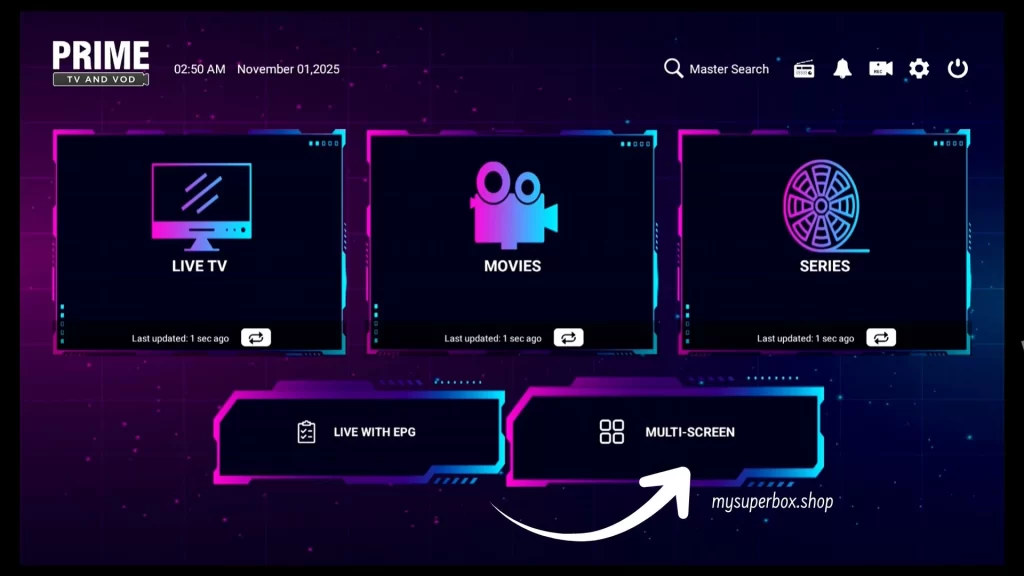
- Select MULTI-SCREEN using your remote control.
- The screen will split into two panels (left and right), each showing a “+” sign.
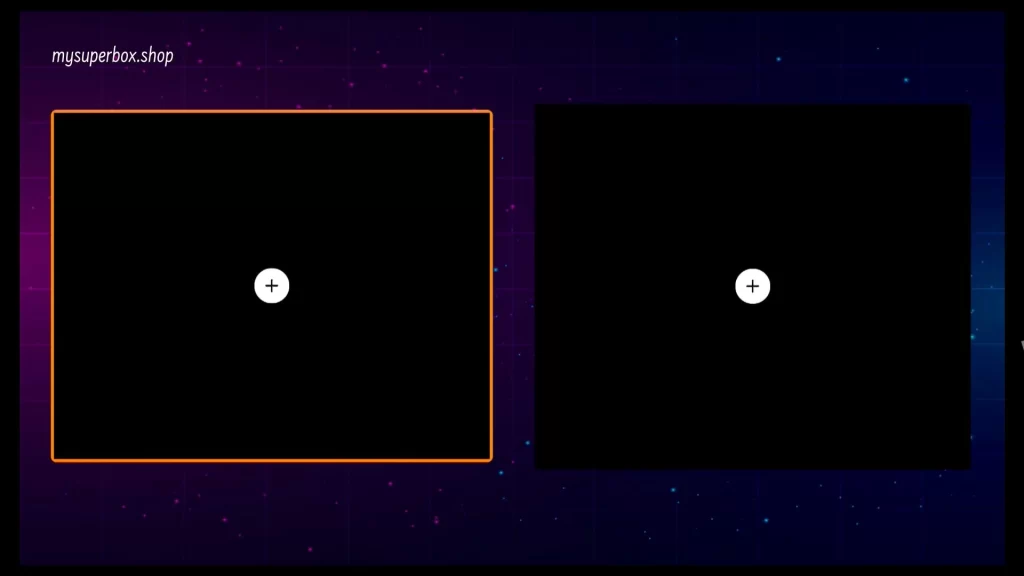
- Select the “+” on one side, then choose the channel you want to watch from the categories provided.
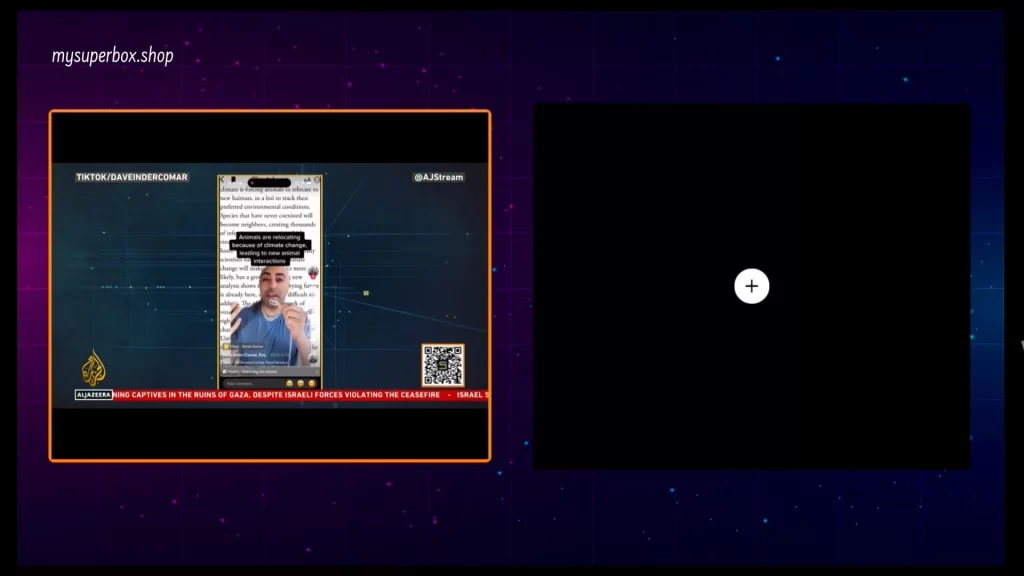
- Repeat the same process on the other side. To make changes to a specific screen, press OK on that screen, and you’ll see several options: Edit Channel and Remove Channel.
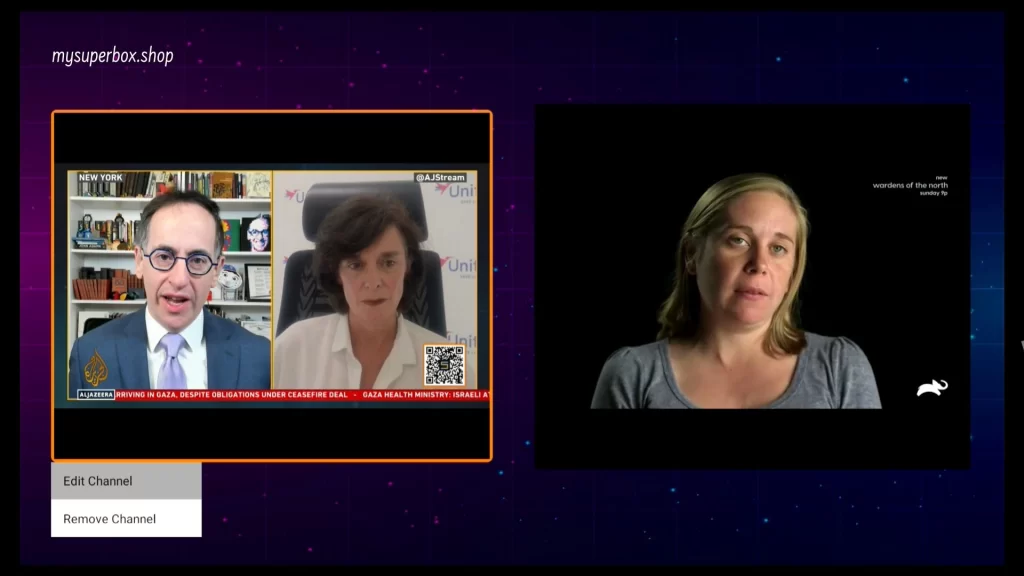
- Once both sides are playing, the one you stop on will have its audio enabled, while the other screen will automatically be muted.
Multi View on SuperBox Supreme
The SuperBox Supreme is the most powerful model in the SuperBox lineup when it comes to content packages. With the widest range of built-in apps and entertainment options, it offers more advanced features than ever — from multi view to built-in recording. Below are 13 apps that currently support multi view on SuperBox Supreme and how to access the feature.
Supported Apps
- (1) International Hub, Epic News, Platinum Plus, Supreme 24-7, Next Level, Dream, Stellar, Cobra – support up to 4 screens at once
- (2) Supreme News, Sonic Streams, Captain Streams, Supreme TV & VOD – support 2 screens at once
- (3) Top Shelf – supports up to 4 screens at once
Guide to Access
Apps in the same group share the same interface, so I’ll use one representative app from each group for the step-by-step guide. If you don’t see these apps on your box yet, try updating your App Store to get the latest versions and enjoy the full multi view on SuperBox experience.
Group 1: Multi Screen on International Hub
I’ll use the International Hub app as an example for this group.
- Open the app. On the main screen, press the Settings button on your remote.
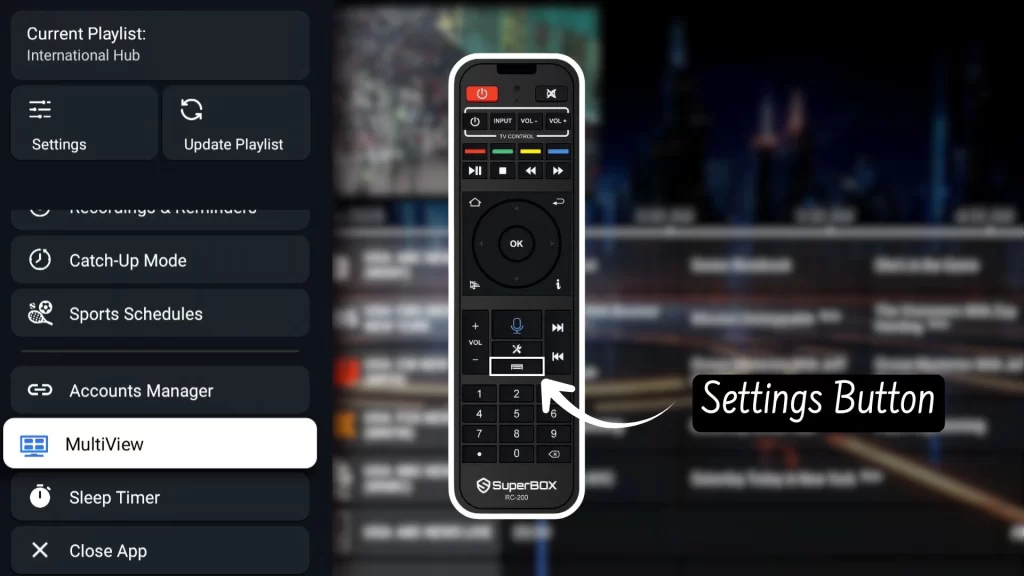
- Scroll down and select Multi View. You’ll see six layout options: 4 Screens, 4 Screens, 3 Screens, 3 Screens, 2 Vertical, and 2 Horizontal, each with a different layout style.
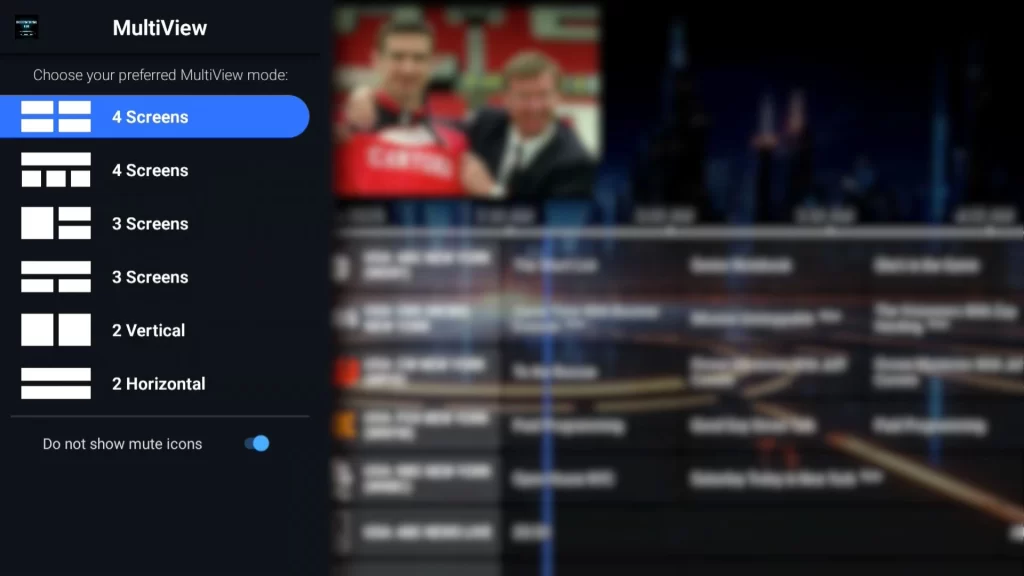
- Choose the layout you want to use. For each “+” icon, select the channel you’d like to add. The channel you stop on will play with sound, while the others will remain muted.

- To make changes to a specific screen, press OK on that screen, and you’ll see several options: Full Screen, Play/Pause, Change Channel, and Clear Channel.

- To change the layout, press the Settings button on your remote again, select Multi View, and choose a new layout.
Group 2: Multi Screen on Supreme News
For this group, I’ll use the Supreme News app as an example.
- Open the Supreme News app. Choose the channel you want to watch and switch it to Full Screen.
- While in full screen mode, press the OK button on your remote to display the options bar at the bottom of the screen. Then select Multi-Screen.
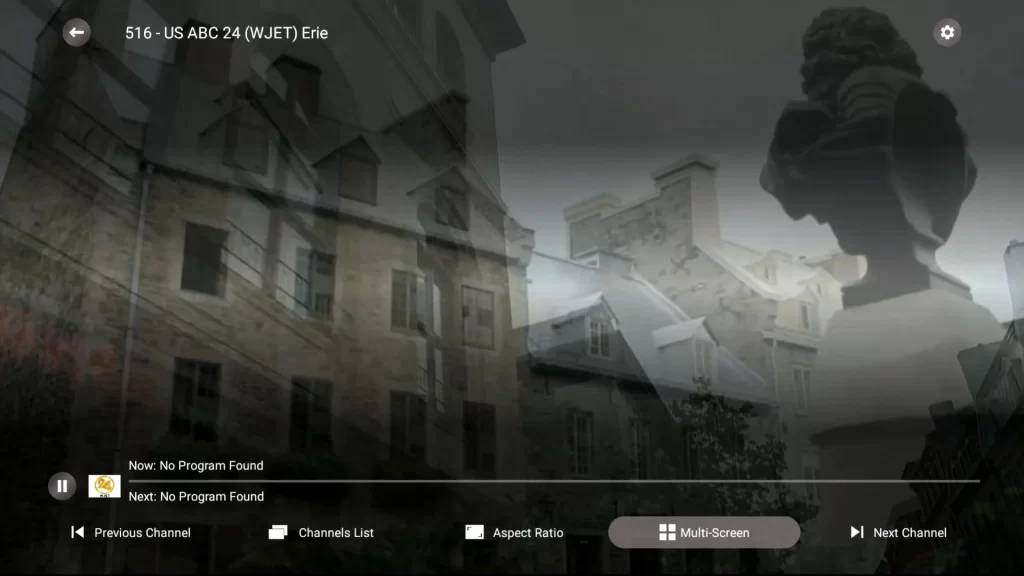
- The screen will now split into two smaller screens. Press each “+” icon to select the channels you want to add. The channel you stop on will play with sound, while the other will remain muted.
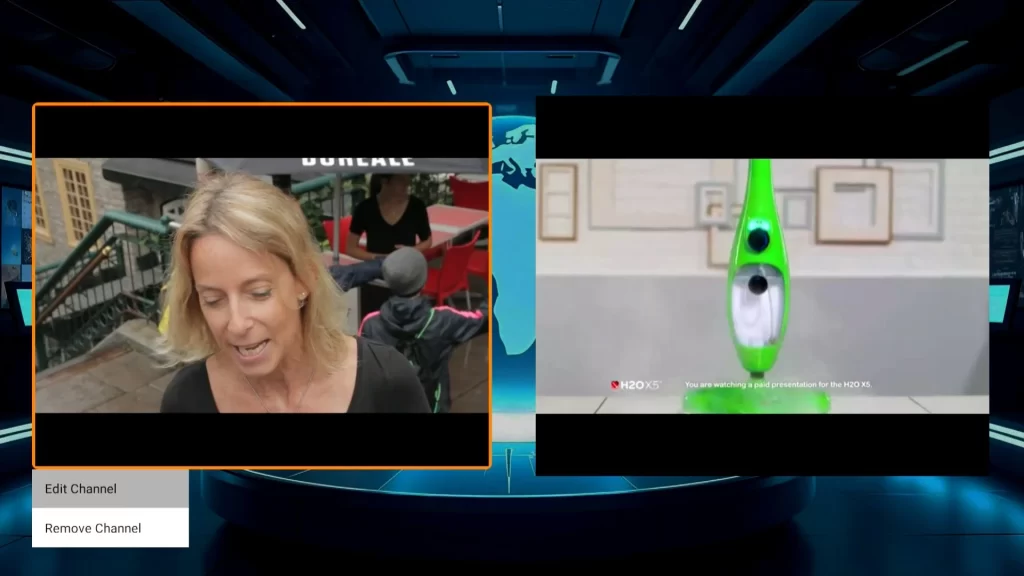
- To remove or change a channel, highlight that screen and press and hold OK. You’ll see two options: Edit Channel and Remove Channel.
Note: For Sonic Streams and Captain Streams, you can access multi-screen either by going to the Live TV section and following the same steps above, or directly from the welcome screen.
Group 3: Multi Screen on Top Shelf
For this group, I’ll use the Top Shelf app as an example. Top Shelf includes Live TV, Movies, and Series, making it one of the all-in-one apps on the SuperBox Supreme that has everything you need. Here’s how to access multi-screen on Top Shelf:
- On the app’s main screen, select Live. Choose a channel you want to watch and switch it to Full Screen.
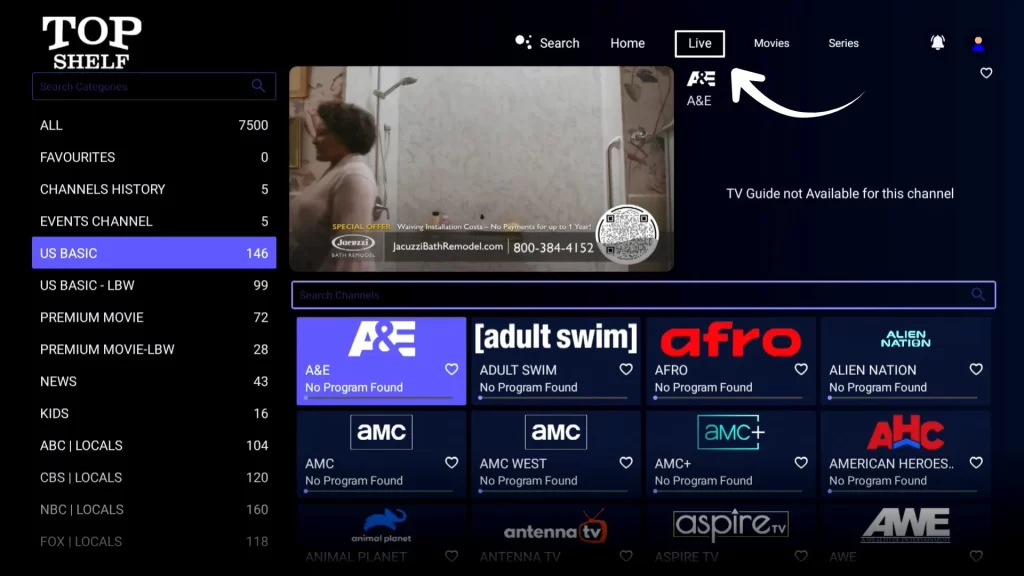
- Press the OK button on your remote to display the options bar. Then select Multi-Screen.

- Several layout options will appear. Choose the layout you want to use.
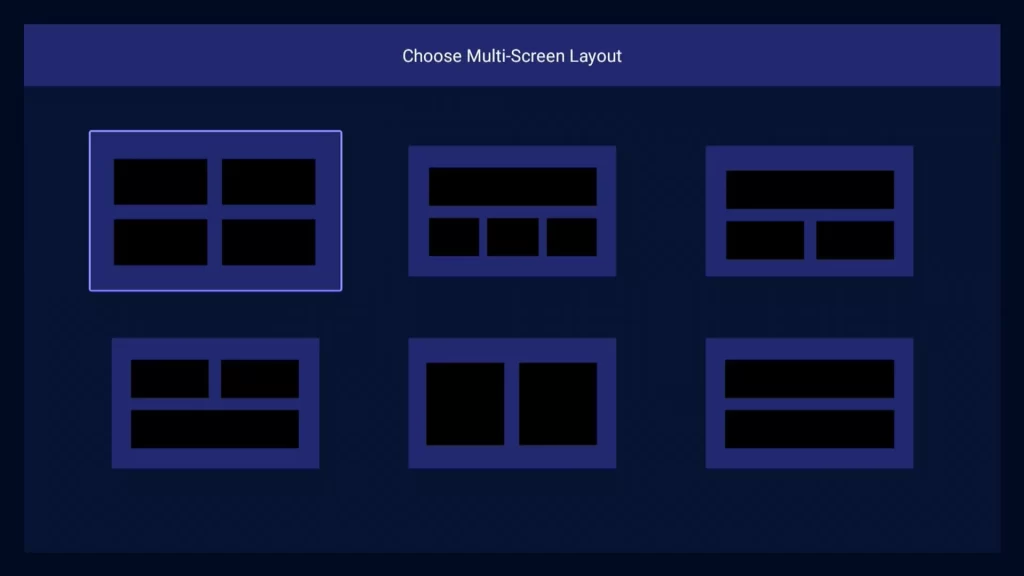
- Add channels to each window by pressing the “+” icon inside each frame. The channel you stop on will play with sound, while the others will remain muted.

- To edit or remove a screen, press and hold OK on that frame, and select either Edit Channel or Remove Channel.
The Future of Multi View on SuperBox
SuperBox keeps evolving with exciting new features and app enhancements. In future updates, users can expect multi view on SuperBox to be integrated directly into Blue TV, making it even easier to switch between or watch multiple channels simultaneously.
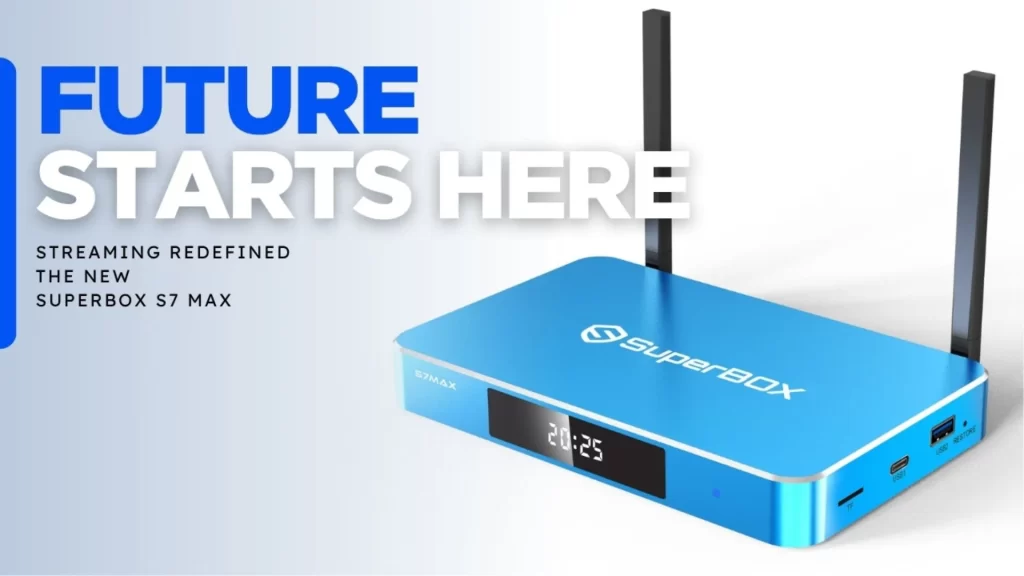
For now, the S6, S7, and Supreme models already deliver one of the smoothest and most reliable multi-screen experiences, showing just how far multi view on SuperBox has come in redefining home entertainment. You can find these models at the Official SuperBox Shop, and don’t forget to use the coupon SUPERBOXBESTBOX at checkout to get an exclusive discount.
Contact us: info@bestsuperbox.com or Whatsapp